
IC Helium - Docs
Bulk-Edit custom fields in your Channel Entries. Change data in multiple fields across Manually Selected Entries, a chosen Date-Range, or All Entries instantly.
Documentation
| Latest Add-on Version | Add-on Last Updated | Docs Last Updated |
|---|---|---|
| 1.1.0 | 9th August 2026 | 9th August 2026 |

Getting Started
Using IC Helium
Use Cases & Examples
- GDPR Data Scrubbing
- Store Bulk Price Updates
- Seasonal Content Changes
- Cartthrob / Ecommerce Free Shipping
- Status Bulk Changes
- Pro Tips
System Requirements
IC Helium is compatible with modern ExpressionEngine installations.
Minimum Requirements
| Requirement | Version |
|---|---|
| ExpressionEngine | 7.4.11+ |
| PHP | 8.2+ |
| HTTPS | Recommended for security |
Recommended Environment
- Memory Limit: 256MB or higher
- Max Execution Time: 300 seconds (for large batches)
Server Permissions
Your ExpressionEngine installation must have:
- Write access to /system/user/addons/
Permission to execute database queries
Installation
Installing IC Helium takes just a few minutes.
Step 1: Upload Files
Upload the add-on folders to:
/system/user/addons/ic_helium/
/themes/user/ic_helium
Step 2: Install Via Control Panel
- Login to your ExpressionEngine Control Panel.
- Go to Developer → Add-Ons.
- Find IC Helium in the “Uninstalled” Add-ons list.
- Click Install.
Step 3: Set Permissions
- Go to Members → Roles.
- Select the Member Role you want to grant access.
- Ensure you the Member Roles you've granted access to the add-on, also have permission to edit the Channel Entries you'd like them to edit using IC Helium.
Verify Installation
- Go to Add-Ons → IC Helium.
- You should see the IC Helium dashboard.
- Select a channel to begin.
Troubleshooting Installation
Add-on not appearing in Add-On list?
- Check file permissions (folders should be 755, files 644).
- Verify files are in the correct directory.
- Clear ExpressionEngine caches.
"Permission denied" errors?
- Ensure your Member Role has correct permissions.
- Check channel-specific edit permissions.
Updating
After updating IC Helium to the latest version, it is recommend you Clear All ExpressionEngine Caches before processing any changes.
Uninstallation
Follow these steps to safely remove IC Helium from your site.
Before You Uninstall
IMPORTANT: Uninstalling IC Helium will:
- Remove the add-on settings.
- Remove any saved field configurations.
- NOT affect your channel entries (your data is safe).
Step 1: Uninstall Via Control Panel
- Go to Developer → Add-Ons.
- Find IC Helium in the installed add-ons list.
- Click Uninstall.
- Confirm the uninstallation.
This removes IC Helium's database settings and deactivates the extension.
Step 2: Delete Files (Optional)
To completely remove IC Helium files:
- Connect to your server via FTP/SSH.
- Delete the folders:
/system/user/addons/ic_helium
/themes/user/ic_helium
Step 3: Clear Cache
- Go to Developer → Utilities.
- Click Clear All Caches.
Reinstalling
If you uninstall and later reinstall IC Helium:
- Settings will be reset to defaults.
- Field configurations will need to be created again.
- No entry data will be affected.
How “IC Helium” Works
IC Helium uses a simple four-step workflow to safely bulk-edit your Entries.
1. Which Entries are you editing?
There are 2 methods to choose the Entries to target:
- Manually Select the Entries in ExpressionEngine's Entry Listings >
“Bulk Edit in IC Helium” >
-or- - Select the Channel within IC Helium >
Choose “All” or “Date Range” >

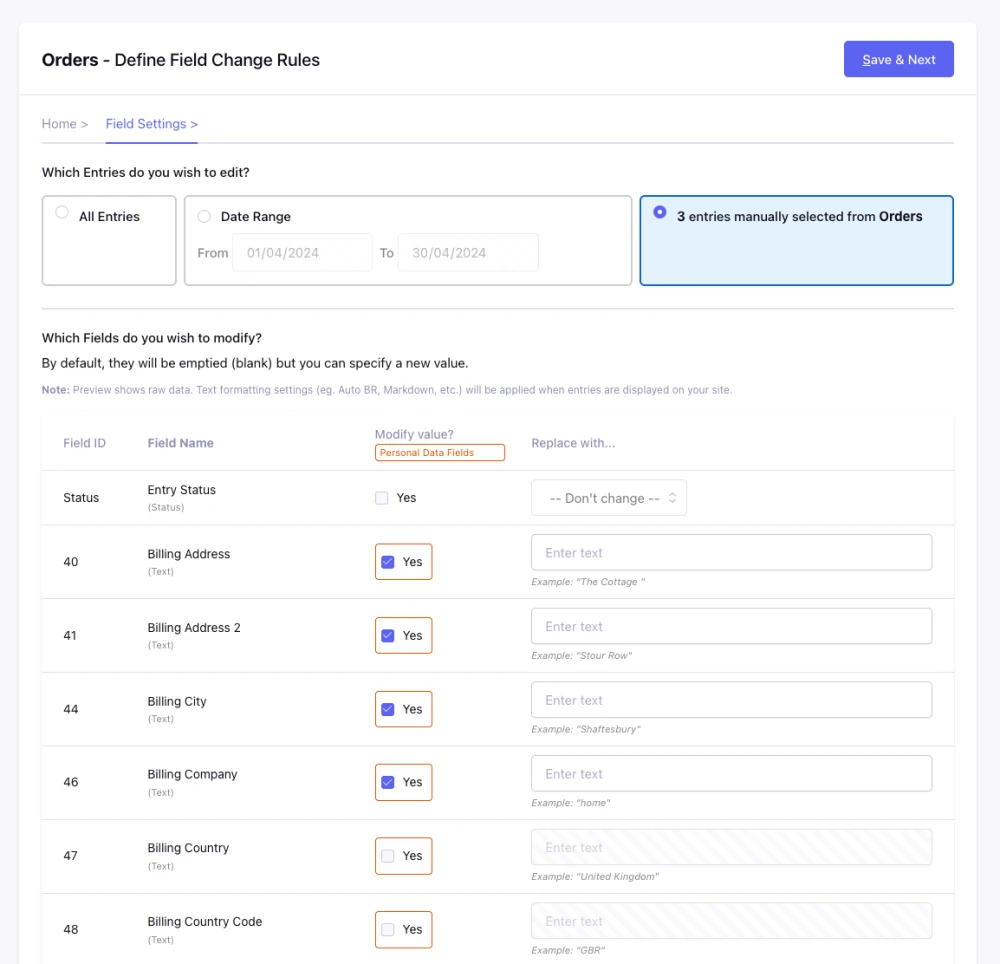
2. Configure (Field Settings)
Select which fields to modify:
- Choose which Fields to modify.
- Set replacement values or leave blank to clear field data.
3. Preview (Preview Changes)
Review before processing:
- See how many entries will be affected.
- Preview first 5 entries with before/after values.
- Confirm you're ready to proceed.

4. Process (Apply Changes)
Bulk updates happen automatically:
- Progress bar shows real-time status.
- Changes are applied in batches (50 entries at a time).
- Cancel anytime if needed.

How Fields Are Updated
IC Helium modifies entries using ExpressionEngine's native API:
- Fetches entries matching your date range.
- Updates field values according to your settings.
- Validates each entry before saving.
- Saves changes to the database.
What Gets Changed?
Which field types is IC Helium able to edit?
| Yes | No |
|---|---|
| Custom fields (text, textarea, select, toggle, etc.) | Entry titles |
| Entry status (open, closed, custom statuses) | Entry dates |
| Entry IDs |
See the Supported Field Types section of the Docs for more information.
Safety Features
- Preview Before Processing
See exactly what will change before committing. - Permission Checks
Users can only edit channels they have permission to access. - Batch Processing
Entries are processed in small batches to prevent timeouts. - Cancel Option
Stop processing at any time without affecting remaining entries. - One-Time Tokens
Prevents accidental duplicate processing.
Under The Hood
- Database Queries
IC Helium uses EE's Query Builder – no raw SQL – to ensure security. - Memory Usage
Processes 50 entries at a time to avoid memory issues on large databases. - Logging
Failed validations are logged with specific error messages.
Step-By-Step Guide
Learn how to use IC Helium to bulk-edit your channel entries.
Step 1a: Manually select target Entries in an Entry Listing in ExpressionEngine
- Use the standard Entry Listing search / filter tools.
- Select the Entries you want to edit.
- Choose “Bulk Edit with IC Helium” in ‘bulk’ dropdown menu.
… or …
Step 1b: Select A Channel within the IC Helium Add-On
- Go to Add-Ons → IC Helium.
- Click on the Channel you want to edit.
- On the Field Settings screen, select “All” or “Date Range” option.

Step 2: Configure Field Changes
If Date Range:
Filter which entries to process:
- Entry date from: Leave blank to start from beginning.
- Entry date to: Leave blank to include all entries.
Example: To process all Order Entries from 2023:
- From: 2023-01-01
- To: 2023-12-31
Editing Fields
- Check "Modify value?" to enable editing.
- Set replacement value:
- Leave blank to clear the field.
- Enter text/number to replace existing values.
- Select from dropdown for select/status fields.
Example: To clear the customer email field:
- Modify value? → Yes
- Replace with → (leave blank) - Click ‘Save & Next’ when done.
Step 3: Preview Changes
Review what will happen:
- Entry count: Shows how many entries match your criteria.
- Fields to change: Lists which fields will be modified.
- Preview: Shows before/after values for first 5 entries.
Warning Popup
Before proceeding, you'll see a confirmation.

- “You are about to permanently modify X entries.”
- “This action CANNOT be undone!”
- "Have you made a backup?"
Click "Yes, Proceed" to continue.
Step 4: Process Entries
Processing happens automatically:
- Progress bar shows completion percentage.
- Entry count updates in real-time.
- Click Cancel to stop processing.
When complete:
- "Processing complete" message appears.
- Choose next action:
- Home – Return to channel list
- View All Entries – See edited entries
- Edit More – Configure another batch

Tips & Best Practices
- Always Backup First
Make a database backup before bulk editing. Use a tool like:
- Backup Pro (EE add-on)
- phpMyAdmin export
- Server-level backup tools - Start Small
Test with a small date range first:
- Process 10-50 entries
- Verify results look correct
- Then process larger batches - Use the Preview
The preview shows:
- Current Value – What's there now
- New Value – What it will become
- Empty fields show as "Empty" - Cancel if Needed
If something looks wrong:
- Click Cancel immediately
- Already-processed entries keep their changes
- Remaining entries are untouched
Field Type Examples
Text Fields
- Clear field:
- Modify value → Replace with: (blank) - Set value:
- Modify value → Replace with: N/A
Toggle Fields
- Turn on:
- Modify value → Toggle: On - Turn off:
- Modify value → Toggle: Off
Select/Dropdown Fields
- Set option:
- Modify value → Select: Your Option - Clear selection:
- Modify value → Select: -- Empty --
Status Field
- Change status:
- Modify value → Status: closed
Field Types Supported
IC Helium supports the most popular ExpressionEngine native field types.
Fully Supported
Text
Field Type: Text
Actions: Clear or replace with new text value
Example: Replace customer names with "REDACTED".
Textarea
Field Type: Textarea
Actions: Clear or replace with new multi-line text
Formatting: Respects field's text formatting settings (Auto BR, Markdown, etc.)
Example: Clear customer addresses.
Toggle (Yes/No)
Field Type: Toggle
Actions: Set to On (1) or Off (0)
Example: Enable "Free Shipping" on all products.
Select (Dropdown)
Field Type: Select
Actions: Clear or set to specific option
Example: Change product options.
Radio Buttons
Field Type: Radio
Actions: Clear or select specific option
Example: Set shipping method to "Standard".
Checkboxes
Field Type: Checkboxes
Actions: Clear all or select specific options.
Multiple: Can select multiple checkbox values.
Example: Add "Clearance" and "Final Sale" tags.
URL
Field Type: URL
Actions: Clear all or define target website address.
Example: Change all URL destinations to point to the same external site.
Email Address
Field Type: Email
Actions: Clear all or define new email address.
Example: Change all contact email addresses to be the same person.
Number
Field Type: Number input
Actions: Clear all or define numeric values for all.
Example: Set dimensions for all product lengths to be the same.
Entry Status
Field Type: System field
Actions: Change to any available status
Example: Set old orders to "closed".
Cartthrob Simple Price
Field Type: cartthrob_price_simple
Actions: Set price value
Validation: Must be positive decimal (e.g., 19.99)
Example: Set all products to “0.00” (free).
Clear-Only Fields
These fields can be cleared (emptied) but not edited:
Rich Text Editors (RTE)
- RTE (rte)
- Redactor (redactor)
- Wygwam (wygwam)
- CKEditor (ckeditor)
Why? Complex HTML content requires special handling. Clearing is safe; editing
could break formatting.
Action: Check "Modify value" → Field will be emptied
Not Supported
These field types cannot be modified (yet!):
- File fields
- Grid fields
- Relationship fields
- Date fields
- Member fields
- Third-party field types (unless listed above)
Field Content Validation
IC Helium validates field content types:
Numeric Fields
Content Type: Numeric
Validation: Must be a number (e.g., 123 or 45.67)
Example: Price, quantity, age
Integer Fields
Content Type: Integer
Validation: Must be whole number (e.g., 5, 100, -3)
Example: Stock count, order number
Decimal Fields
Content Type: Decimal
Validation: Must be decimal number (e.g., 19.99, 3.14)
Example: Price, weight, rating
All Content
Content Type: All
Validation: Any text allowed
Example: Names, descriptions
Cartthrob Support
- Personal Data Field Highlighting - If your data fields use the pre-installed / native field names provided by Cartthrob (eg. order_customer_phone, order_billing_address) they will be highlighted in the Field Settings screen as potential personal data fields.
- Order Financials Data Fields - leave these data fields untouched (eg. order total, tax, subtotal) and the Cartthrob Order Manager add-on will still use your Order Entries in its order summary graphs and stats.
Use Cases & Examples
Real-world examples of how to use IC Helium.
GDPR Data Scrubbing
Scenario: You need to remove customer personal data from orders older than ‘x’ years to comply with GDPR and your Privacy Policy.
What to Scrub
- Customer names
- Email addresses
- Phone numbers
- Billing/shipping addresses
- Order notes
Step-by-Step
1. Field Settings
Date range:
- From: 2022-01-01
- To: 2022-12-31
Fields to modify:
- Customer Name → (blank)
- Customer Email → (blank)
- Customer Phone → (blank)
- Billing Address → (blank)
- Shipping Address → (blank)
- Order Notes → (blank)
2. What NOT to Clear
- Order number
- Order date
- Product SKUs
- Prices
- Payment status
Financial records stay intact for accounting and stats analysis!
3. Result
- Before:
Customer: John Smith
Email: john@example.com
Total: £150.00 - After:
Customer: (empty)
Email: (empty)
Total: £150.00
Store Bulk Price Updates
Scenario: Set all products to $0.00 for a “Free Sample” promotion.
Step-by-Step
1. Filter Products
Date range: (leave blank for all products)
2. Set Price
Fields to modify:
- Price → 0.00
- On Sale Toggle → On
- Product Status → Active
3. Result
100 products updated to Free, in seconds!
Seasonal Content Changes
Scenario: Update all blog posts from Q1 2024 with seasonal tags.
Step-by-Step
1. Date Range
- From: 2024-01-01
- To: 2024-03-31
2. Add Tags
Fields to modify:
- Season (Select) → Winter 2024
- Tags (Checkboxes) → Select: Seasonal, Archive
3. Result
All Q1 2024 posts now tagged for easy filtering!
Cartthrob / Ecommerce Shop: Free Shipping
Scenario: Enable free shipping on all products for Black Friday.
Step-by-Step
Fields to modify:
- Free Shipping (Toggle) → On
- Shipping Price → 0.00
Result: All products now ship free!
Status Bulk Changes
Scenario: Close all blog posts older than 3 years.
Step-by-Step
Date range:
- From: (leave blank)
- To: 2021-12-31
Fields to modify:
- Entry Status → closed
Result: Old content archived in one click!
Pro Tips
Test with Small Batches
- Process 10-20 entries first.
- Verify results in entry edit screen.
- Then process the full batch.
Backup Before Large Changes
For 500+ entries:
- Create database backup.
- Test on staging site first.
- Then run on production.
Troubleshooting
Common issues and how to solve them.
Installation Issues
Add-on doesn't appear in Add-On Manager
Cause: Files not uploaded correctly
Solution:
- Verify that files are in the correct directories on your server. See Installation instructions.
- Check folder permissions.
- Clear EE cache: Developer → Utilities → Clear All Caches.
"Permission denied" error
Cause: Member group lacks permissions
Solution:
- Go to Members → Roles
- Edit your Member Role
- Enable:
- Can access add-ons
- Can access Control Panel
- Edit entries for the channel
Processing Issues
"Invalid channel ID" error
Cause: Accessing page without selecting a channel
Solution:
- Return to IC Helium home and select a Channel
"Unauthorised access" error
Cause: User doesn't have permission to edit this channel
Solution:
- Check member group permissions.
- Ensure user can "Edit other entries" for that channel.
- Contact site administrator.
Processing stops/times out
Cause: Server timeout on large batches
Solution:
- Process is limited to 50 entries at a time (automatic).
- If still timing out, contact your host to increase:
- max_execution_time to 300 seconds
- memory_limit to 256MB
"Invalid request token" error
Cause: CSRF token expired or page was reloaded
Solution:
- Return to Preview page and click "Proceed" again.
- Don't refresh the Processing page.
"Already processed" warning
Cause: Trying to re-run same batch
Solution:
- This is a safety feature.
- Return to Field Settings to configure a new batch.
Field Issues
Field shows “Not supported”
Cause: Field type isn't compatible with IC Helium
Field types:
- Supported : Text, textarea, toggle, select, radio, checkboxes, status
- Not supported : File, grid, relationship, dates
Solution:
- Edit those fields manually in entry edit screen
"Validation failed" error
Cause: Replacement value doesn't match field's content type
Examples:
- Numeric field but entered text.
- Price field but entered letters.
Solution:
- Check the error message for field name.
- Verify your replacement value matches field type.
- For numeric fields: Use numbers only (e.g., 123 or 45.67).
Changes not saving
Cause: Field validation failing
Solution:
- Check Processing page for error messages.
- Common issues:
- Required fields left blank (uncheck "Modify" for required fields)
- Invalid format for field type
- Min/max length violations
Browser Issues
JavaScript errors in console
Cause: Browser caching old files
Solution:
- Clear browser cache.
- Hard refresh: Ctrl+Shift+R (Windows) or Cmd+Shift+R (Mac).
Progress bar not updating
Cause: JavaScript not loading
Solution:
- Check browser console for errors.
- Ensure JavaScript is enabled.
- Try a different browser.
Performance Issues
Processing very slow
Cause: Large database or slow server
Expected speed:
- Small database (<1000 entries): Very fast.
- Medium database (1000-10000): Moderate.
- Large database (10000+): May take several minutes.
Solution:
- Use date ranges to process smaller batches.
- Run during off-peak hours.
- Contact host about server resources.
Getting Help
Before Contacting Support
Gather this information:
- ExpressionEngine version
- PHP version
- IC Helium version
- Error message (exact text or screenshot)
- Steps to reproduce the issue
Contact Support
Email: support@ic360.com
Include:
- System information above
- Description of issue
- Screenshots is applicable
Response time: Within 1-2 business days, but please be patient. Thank you.
Error Messages Reference
| Error | Meaning | Solution |
|---|---|---|
| Invalid channel ID | No channel selected | Return to home, select channel |
| Unauthorised access | No permission | Check Member Role permissions |
| Invalid request token | CSRF expired | Return to Preview, try again |
| Already processed | Duplicate attempt | Configure new batch |
| Validation failed | Field validation error | Check field content type |
Changelog
All notable changes to IC Helium are documented here.
Version 1.1.0
Released: 9th August 2026
Added / Improved
- ‘Push’ entries into add-on from EE Control Panel Entry Listing screens using “Bulk Edit with IC Helium” option in ‘bulk’ dropdown menu.
- Added "Manually Selected" radio button option to Field Settings.
- Added entry count and Channel name display when arriving from Entry Listings.
Fixed
- Home screen Channel list now filtered to only show channels the current user has permission to edit.
Version 1.0.7
Released: 27th July 2026
Added / Improved
- New custom fields supported: URL, Email, Number input.
Version 1.0.6 (Public Launch)
Released: 31st March 2026
Added / Improved
- Licence info clarification within add-on and in Docs.
- General code cleanup.
Version 1.0.5 (Internal)
Released: 25th March 2026
Added / Improved
- “All Entries” and “Date Range” selection options in Field Settings.
- “Entry date to” field in “Date Range” pre-filled to today's date.
- Fields containing potential personal data (eg. name, phone number, shipping address) now highlighted, rather than pre-selected.
- Personal data pre-selected field list improved.
- Progress bar removed and replaced with “Process complete” message upon completion.
Fixed
- Changed how tokens are created/stored for Processing protection function.
- “Date Range” input fields made ‘required’.
- Validation added to prevent Field Settings form being submitted without having selected a field for editing.
Version 1.0.4 (Internal)
Released: 8th March 2026
Fixed
- Errors encountered from when installing when Cartthrob not installed
- Issue with initial setting of and passing token from Preview to Processing section
- Errors found in Processing screen caused by non-EE7 compatible code
Version 1.0.3 (Internal)
Released: 5th February 2026
Added
- One-time processing tokens prevent duplicate runs
- Session-based safeguards against accidental reprocessing
- Improved completion page with reload protection
- Enhanced security audit completed
Fixed
- CSRF token validation for AJAX requests
- Page reload handling on completion screen
- Permission checks for batch processing
Security
- Comprehensive XSS protection across all views
- SQL injection prevention via query builder
- Input validation and sanitisation
- Channel-specific permission enforcement
Version 1.0.0 (Internal)
Internal Development 2025
- Bulk-edit channel entries
- Preview before processing
- Date range filtering
- Support for multiple field types
- Progress tracking with Cancel option
- Permission-based access control
Licence Agreement
This licence is a legal agreement between you and IC360 Limited for the use of the "IC Helium" software add-on for ExpressionEngine (the "Software"). By downloading the Software, you agree to be bound by the terms and conditions of this licence. IC360 Limited reserves the right to alter this agreement at any time, for any reason. Any changes will take effect for new purchases made after the date of change. Existing licences will continue to be governed by the terms in place at the time of purchase.
Permitted Use
One licence grants the right to perform one installation of the Software on a live/production website. Development, staging and sandbox servers do not require an additional purchase of a licence. Each additional installation of the Software on a live/production website requires an additional purchased licence.
Restrictions
Unless you have been granted prior, written consent from IC360 Limited, you may not:
- Reproduce, distribute, or transfer the Software, or portions thereof, to any third party.
- Sell, rent, lease, assign, or sublet the Software or portions thereof.
- Grant rights to any other person.
- Use the Software in violation of any United Kingdom or international law or regulation.
Display of Copyright Notices
All copyright and proprietary notices and logos in the Control Panel and within the Software files must remain intact.
Making Copies
You may make copies of the Software for back-up purposes, provided that you reproduce the Software in its original form and with all proprietary notices on the back-up copy.
Software Modification
You may alter, modify, or extend the Software for your own use, or commission a third-party to perform modifications for you, but you may not resell, redistribute or transfer the modified or derivative version without prior written consent from IC360 Limited. Components from the Software may not be extracted and used in other programs without prior written consent from IC360 Limited.
Technical Support
Technical support is available only through IC360 Limited. No warranty is provided and no liability is assumed by IC360 Limited for support services offered or provided. No representations or guarantees are made regarding the response time in which support questions are answered.
Refunds
IC360 Limited offers refunds on software within 14 days of purchase. Contact support@ic360.com for assistance.
Indemnity
You agree to indemnify and hold harmless IC360 Limited for any third-party claims, actions or suits, as well as any related expenses, liabilities, damages, settlements or fees arising from your use or misuse of the Software, or a violation of any terms of this licence.
Disclaimer of Warranty
The Software is provided "AS IS", without warranty of any kind, expressed or implied, including, but not limited to, warranties of quality, performance, non-infringement, merchantability, or fitness for a particular purpose. Furthermore, IC360 Limited does not warrant that the Software or any related service will always be available.
Limitations of Liability
You assume all risk associated with the installation and use of the Software. In no event shall the authors or copyright holders of the Software be liable for claims, damages or other liability arising from, out of, or in connection with the Software. Licence holders are solely responsible for determining the appropriateness of use and assume all risks associated with its use, including but not limited to the risks of program errors, damage to equipment, loss of data or software programs, or unavailability or interruption of operations.
General
This agreement shall be governed by and construed in accordance with the laws of England and Wales, and any disputes shall be subject to the exclusive jurisdiction of the courts of England and Wales.